

I’ve SSHed into EC2 instances dozens of times. The ritual is familiar — generate a key-pair in AWS, download the .pem file, chmod 400, then:
ssh -i geek-ec2-kp.pem ec2-user@54.226.167.59It works. I get a shell. I move on.
But with this “Building Trust on the Internet” series sitting in the back of my mind, I started paying attention to something I’d been ignoring.
The first time I connect to a new instance, the terminal pauses:
The authenticity of host '54.226.167.59 (54.226.167.59)' can't be established.
ED25519 key fingerprint is SHA256:WPHp1jPiPTmWCriZegalziBOTc3W0464HIYAdj0XxUU.
Are you sure you want to continue connecting (yes/no)?
I’d always typed yes without thinking. It’s part of the ritual. But this time I stopped.
I already had a key. That’s what the -i geek-ec2-kp.pem was for. So what was this fingerprint? What was SSH asking me to trust, and why did it matter?
Part 1 was about TLS — how browsers trust servers through certificate chains and PKI. Part 2 was about IAM — how AWS services authenticate without passwords. Both built trust through infrastructure.
SSH does something different.
1. Two Separate Keypairs
It took me a while to untangle this, but the answer is: SSH uses two separate keypairs in every connection.
I drew this out to make sure I had it straight:
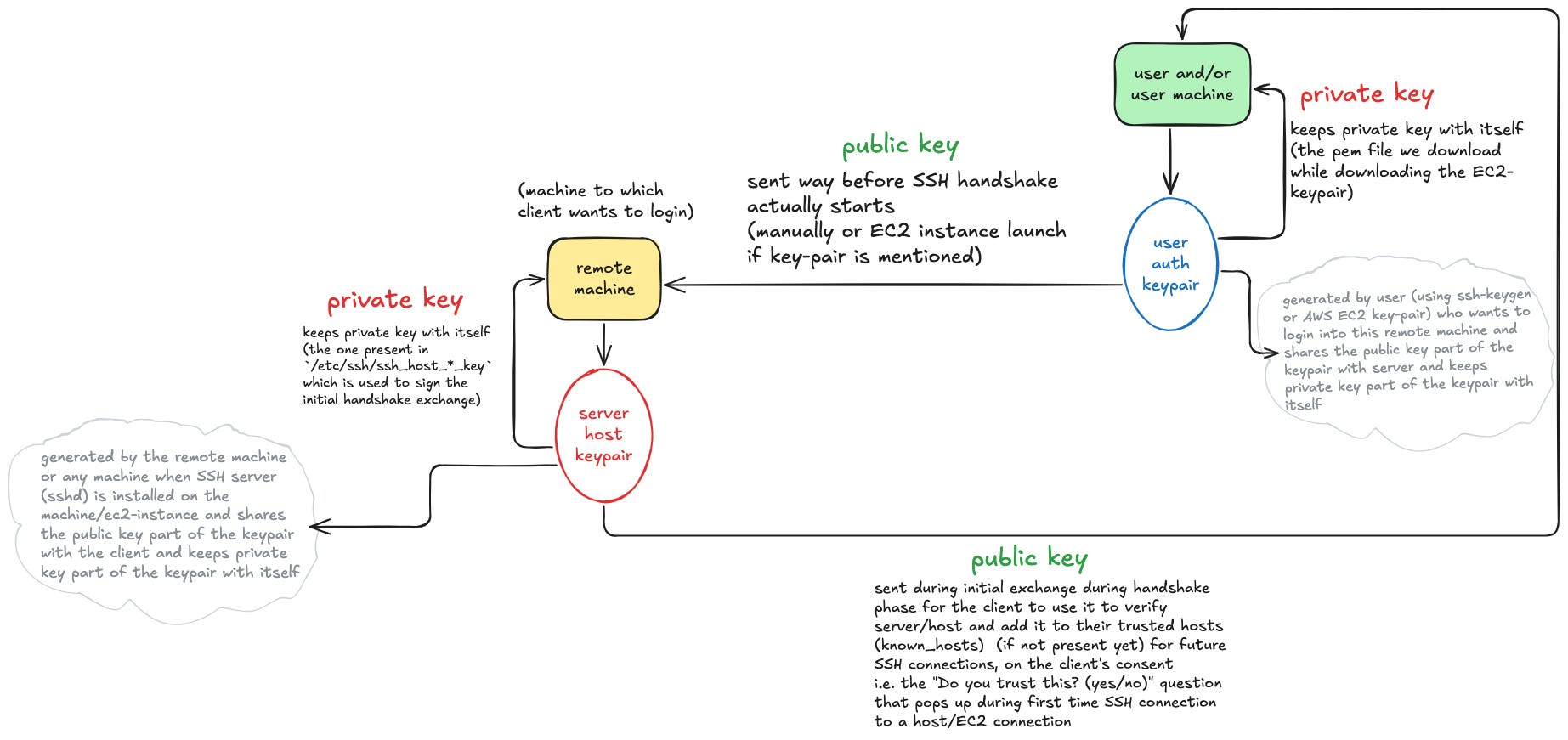
The server host keypair (red circle, left side):
Generated by the remote machine itself when sshd is first installed or the instance boots for the first time. The private key stays in /etc/ssh/ssh_host_ed25519_key and never leaves the server. The public key gets sent to clients during the handshake, and clients store it in their ~/.ssh/known_hosts file.
This keypair proves “I am this specific EC2 instance, not a man-in-the-middle.”
The user authentication keypair (blue circle, right side):
➜  Downloads cat geek-ec2-kp.pem
-----BEGIN RSA PRIVATE KEY-----
<base64-encoded private key>
-----END RSA PRIVATE KEY-----%
This is the one I’m more familiar with. When I created the EC2 key-pair in AWS, AWS generated both keys. I downloaded the private key (the .pem file) and AWS injected the public key into the instance at /home/ec2-user/.ssh/authorized_keys during launch.
The diagram shows this flow: I keep the private key on my laptop, the instance gets the public key way before the SSH handshake even starts — either manually via authorized_keys or automatically via EC2’s cloud-init during instance launch.
This keypair proves “I am authorized to log in as ec2-user.”
The critical insight from the diagram:
These two flows are completely independent. The arrow on the left (server host keypair’s public key) goes from the server to my machine during the handshake. The arrow on the right (user auth keypair’s public key) goes from my machine to the server before any SSH connection even happens.
The .pem file I downloaded from AWS? That’s the user authentication private key. The fingerprint SSH was showing me during first connection? That’s the hash of the server’s host public key.
Two different keys, two different purposes, two different moments in time.
2. The Handshake Flow
The next question was: when does each keypair actually get used?
I traced through the byte-level handshake and split it into three phases:
Phase 1 - Setup, Banner Exchange, Algorithm Negotiations
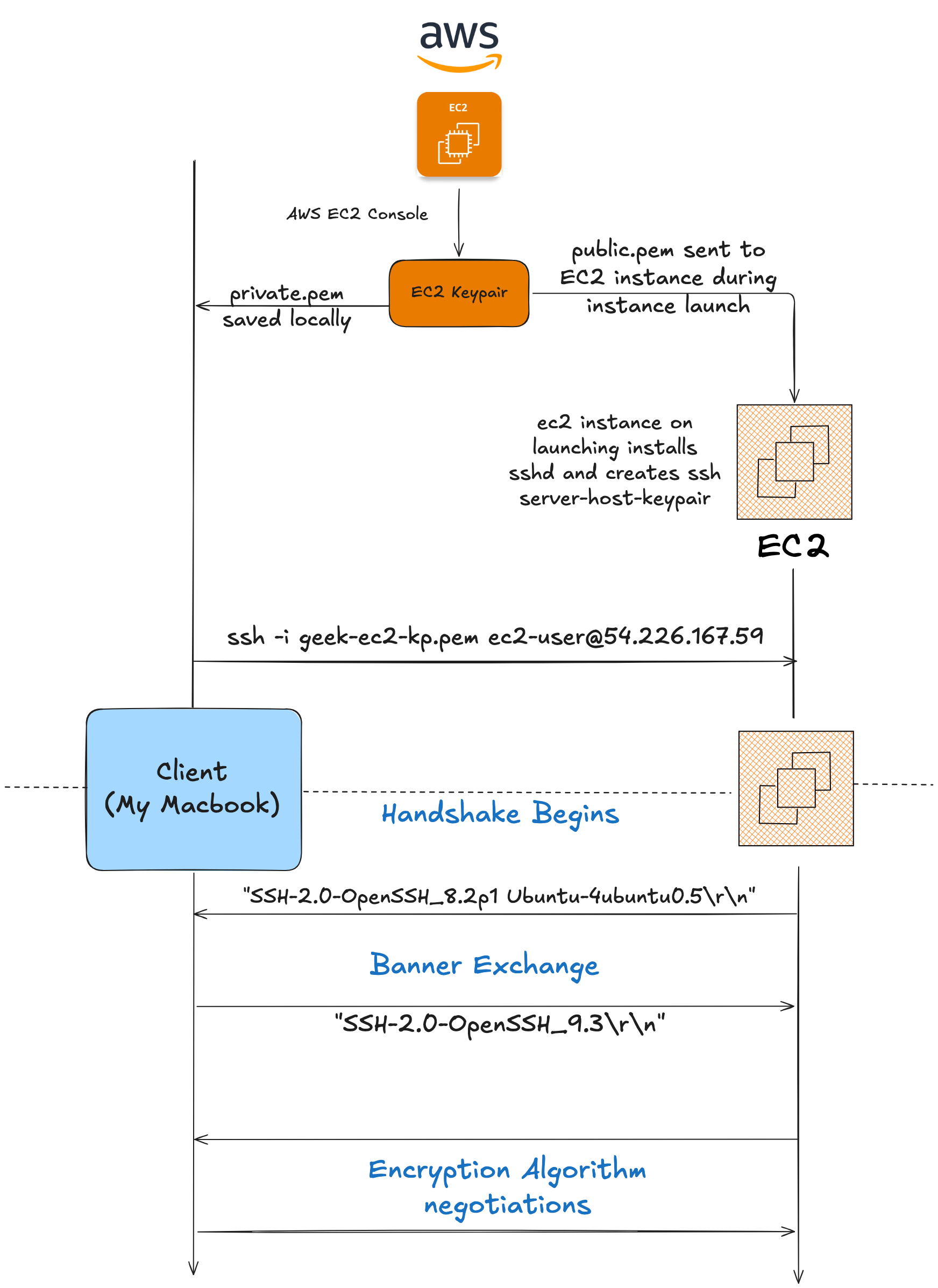
The diagram shows the AWS setup at the top — when I created the EC2 key-pair, AWS sent the public key to the instance during launch. That public key sits in /home/ec2-user/.ssh/authorized_keys. I downloaded the private key (the .pem file) and saved it locally.
When the instance launched, it installed sshd and generated its own server-host-keypair. That private key stays in /etc/ssh/ssh_host_* on the instance.
Now I run: ssh -i geek-ec2-kp.pem ec2-user@54.226.167.59
Handshake Begins
Banner exchange (SSH protocol version exchange)
Server sends "SSH-2.0-OpenSSH_8.2p1 Ubuntu-4ubuntu0.5\r\n"
Client sends "SSH-2.0-OpenSSH_9.3\r\n"
Both sides announce their SSH version. Plain text, unencrypted. This is just protocol negotiation — “I speak SSH-2.0, here’s my software version.”
Encryption Algorithm negotiations
Both server and client decide on encryption algorithms to be used going further. This includes:
Key exchange method (like
curve25519-sha256orecdh-sha2-nistp256)Encryption cipher (like
aes128-gcm)MAC algorithm
Compression
Still unencrypted at this point. They’re just agreeing on what tools they’ll use once the secure channel is established.
Phase 2 - Key Exchange, Server Authentication, Client Requests User Auth
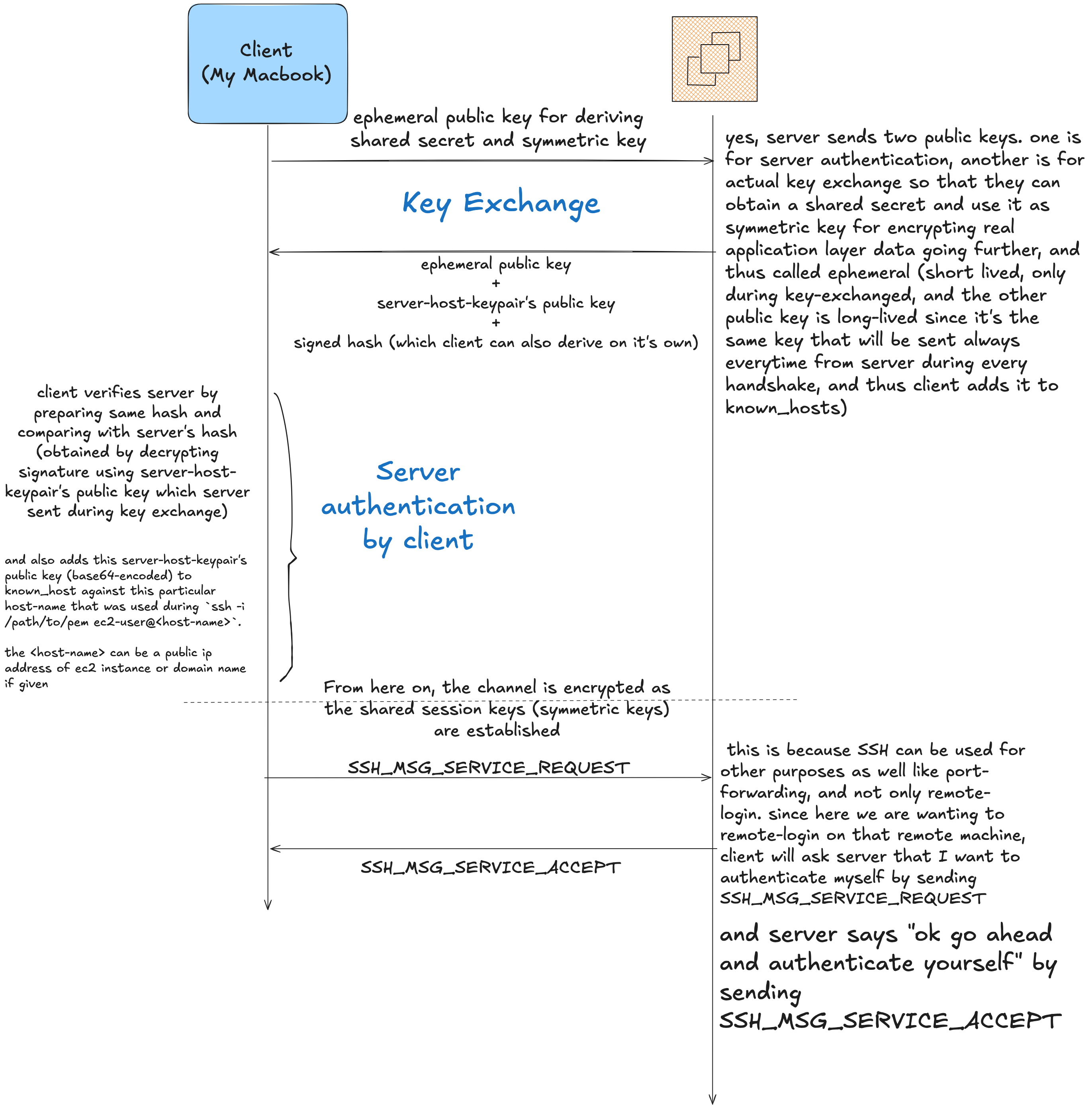
Key exchange
This is where the server’s host keypair comes in.
Client sends its ephemeral public key
Just for this session, used for deriving the shared secret and symmetric key. The client generated an ephemeral keypair (only lives for this one connection).
Server sends:
This is where I got confused initially — the server sends two public keys:
Server-host-keypair’s public key along with a signed hash to authenticate itself (for client to verify server)
Server’s ephemeral public key for key exchange
Signature of a hash (on strings which client also can derive on its own end) signed using the server-host-keypair’s private key
I had to sit with this to understand why two keys. One is for server authentication, the other is for the actual key exchange so both sides can derive a shared secret. The ephemeral one is short-lived, only exists during this handshake. The host key is long-lived — it’s the same key that gets sent every time from this server during every handshake, which is why the client adds it to known_hosts.
Both sides can now compute the same shared secret via ECDH. But the signature is the critical part. It proves “I own the private key matching this host public key, and I’m binding my identity to this specific key exchange.”
The hash being signed includes the banners, the algorithm lists, both ephemeral keys, and the shared secret from ECDH. The server signs it, the client verifies it.
Server authentication by client
The client takes the server’s host public key and checks ~/.ssh/known_hosts.
The client verifies the server by preparing the same hash and comparing it with the server’s hash (obtained by decrypting the signature using the server-host-keypair’s public key which the server sent during key exchange).
It also adds this public key (base64-encoded) to known_hosts against this particular host-name that was used during ssh -i /path/to/pem ec2-user@<host-name>.
The <host-name> can be a public IP address of EC2 instance or domain name if given.
If it’s a first connection, the client shows me the fingerprint and asks if I trust it. If it’s a repeat connection, the client verifies the key matches what’s stored. If there’s a mismatch, connection refused — that’s the MITM warning.
From here on, the channel is encrypted
As the diagram shows, the shared session keys (symmetric keys) are established. All further communication uses these symmetric keys for encryption.
Client initiates/requests user authentication
Client sends SSH_MSG_SERVICE_REQUEST and server sends SSH_MSG_SERVICE_ACCEPT.
This is because SSH can be used for other purposes as well like port-forwarding, and not only remote-login. Since here we are using SSH to authenticate to an AWS EC2 Linux instance, it means that I want to authenticate myself by sending SSH_MSG_SERVICE_REQUEST and server says “ok go ahead and authenticate yourself” by sending SSH_MSG_SERVICE_ACCEPT.
Phase 3 - User Authentication (Probe + Signature), Handshake Done
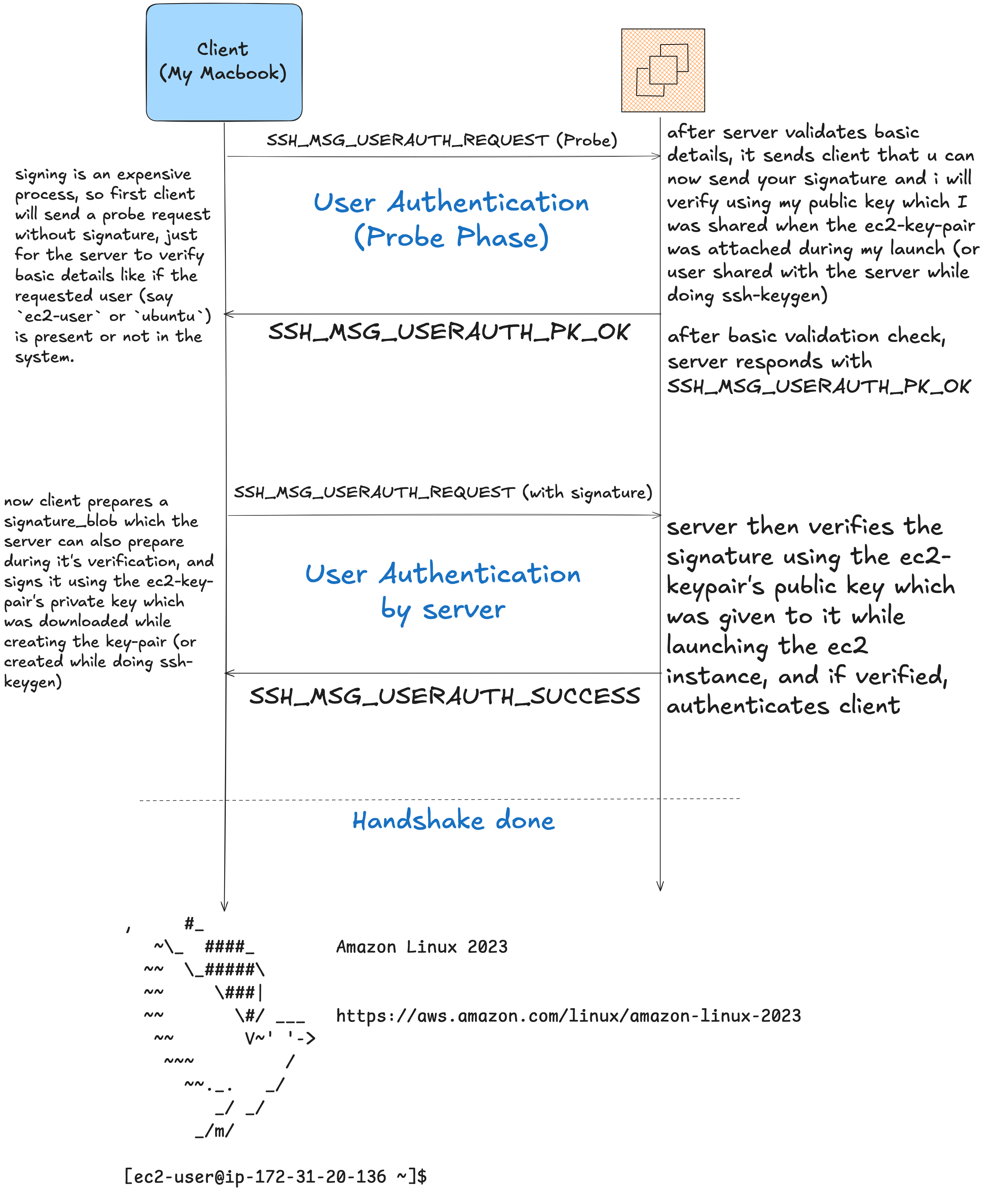
User authentication by server
Now, inside the encrypted tunnel, I finally prove I’m authorized to log in.
This happens in two steps:
Step 1: Probe request (User Authentication - Probe Phase)
Signing is an expensive process, so first the client will send a probe request (SSH_MSG_USERAUTH_REQUEST (Probe)) without signature, just for the server to verify basic details like if the requested user (say ec2-user or ubuntu) is present or not in the system.
After the server validates basic details, it sends the client SSH_MSG_USERAUTH_PK_OK saying “you can now send your signature and I will verify using my public key which I was shared when the ec2-key-pair was attached during my launch (or user shared with me when he did ssh-keygen).”
After basic validation check, server responds with SSH_MSG_USERAUTH_PK_OK.
Step 2: Actual signature (User Authentication by server)
Now the client prepares a signature_blob which the server can also prepare during its verification, and signs it using the ec2-key-pair’s private key which was downloaded while creating the key-pair (or created while doing ssh-keygen).
Client sends SSH_MSG_USERAUTH_REQUEST (with signature).
The server then verifies the signature using the ec2-keypair’s public key which was given to it while launching the ec2 instance, and if verified, authenticates client.
Server responds with SSH_MSG_USERAUTH_SUCCESS.
If valid, shell granted.
Handshake done
The diagram shows the Amazon Linux 2023 prompt — I’m now logged into the instance.
The key insight from these diagrams
Encryption happens before user authentication. The server proves its identity (via host key signature) before I ever prove mine. SSH secures the pipe first, then checks authorization.
The user keypair is only used once, during login. After that, all communication is encrypted with the session keys — symmetric keys derived from the ephemeral key exchange.
This mirrors what I covered in Part 1: asymmetric encryption (the host keypair, the user keypair) is used to establish trust and identity, but the actual data transmission uses symmetric encryption (AES-GCM) because it’s much faster for large amounts of data. The session keys are what handle all the terminal input/output, file transfers, everything after login. Asymmetric crypto did its job during the handshake. From here on, it’s just fast symmetric encryption.
3. known_hosts Isn’t “Trusted Hosts”
When I typed yes at that fingerprint prompt, SSH saved the server’s host public key to ~/.ssh/known_hosts:
54.226.167.59 ssh-ed25519 AAAAC3NzaC1lZDI1NTE5AAAAIDxD6gi+FNijA1n40q0xZy5t8YyPL/CeqX2HTzmLhKnRThis isn’t a list of “servers I trust.” It’s a list of “this server has this public key.”
The difference matters.
On the next connection to 54.226.167.59, SSH doesn’t ask me again. It checks: does the public key the server just sent match what’s stored in known_hosts? If yes, connect silently. If no, scream.
SSH tracks servers by cryptographic identity, not by hostname.
The fingerprint (SHA256:WPHp1jPiPTmWCriZegalziBOTc3W0464HIYAdj0XxUU) is just a hash of that public key, displayed in a human-friendly format. Comparing a 43-character hash is easier than comparing a 256-byte key.
4. The Experiments
I wanted to see what actually triggers the warnings. So I spun up EC2 instances and ran through different scenarios.
Experiment 1: First connection
➜  Downloads ssh -i geek-ec2-kp.pem ec2-user@54.226.167.59
The authenticity of host '54.226.167.59 (54.226.167.59)' can't be established.
ED25519 key fingerprint is SHA256:WPHp1jPiPTmWCriZegalziBOTc3W0464HIYAdj0XxUU.
This key is not known by any other names.
Are you sure you want to continue connecting (yes/no/[fingerprint])? yes
Warning: Permanently added '54.226.167.59' (ED25519) to the list of known hosts.
That fingerprint is the SHA-256 hash of the server’s host public key. SSH is asking me to verify it. I typed yes. It got saved to ~/.ssh/known_hosts.
Experiment 2: Reboot
➜  Downloads echo "I am restarting my ec2 instance now"
I am restarting my ec2 instance now
➜  Downloads ssh -i geek-ec2-kp.pem ec2-user@54.226.167.59
   ,     #_
   ~\_  ####_        Amazon Linux 2023
  ~~  \_#####\
  ~~     \###|
  ~~       \#/ ___   https://aws.amazon.com/linux/amazon-linux-2023
   ~~       V~' '->
    ~~~         /
      ~~._.   _/
         _/ _/
       _/m/
[ec2-user@ip-172-31-20-136 ~]$
No prompt. SSH logged me in silently. Same instance, same host keys. The files in /etc/ssh/ssh_host_* survived the reboot.
Experiment 3: Stop/Start (new IP, same instance)
➜  Downloads echo "now i have stopped and restarted"
now i have stopped and restarted
➜  Downloads ssh -i geek-ec2-kp.pem ec2-user@54.196.250.140
The authenticity of host '54.196.250.140 (54.196.250.140)' can't be established.
ED25519 key fingerprint is SHA256:WPHp1jPiPTmWCriZegalziBOTc3W0464HIYAdj0XxUU.
This host key is known by the following other names/addresses:
    ~/.ssh/known_hosts:42: 54.226.167.59
Are you sure you want to continue connecting (yes/no/[fingerprint])? yes
Same fingerprint as before. Different IP. SSH noticed: “I’ve seen this key before, on 54.226.167.59.”
Stop/start preserves the EBS volume. The host keypair files stayed intact. New IP, same cryptographic identity.
I checked known_hosts:
➜  Downloads cat ~/.ssh/known_hosts | grep 54.196.250.140
54.196.250.140 ssh-ed25519 AAAAC3NzaC1lZDI1NTE5AAAAIDxD6gi+FNijA1n40q0xZy5t8YyPL/CeqX2HTzmLhKnR
That base64 blob is the server’s host public key. The fingerprint is just SHA256(that_blob) for human readability.
Experiment 4: Terminate/Launch (new instance, same user keypair)
➜  Downloads echo "now lets try to terminate the instance and launch new instance with same geek-ec2-kp keypair"
now lets try to terminate the instance and launch new instance with same geek-ec2-kp keypair
➜  Downloads ssh -i geek-ec2-kp.pem ec2-user@54.242.80.236
The authenticity of host '54.242.80.236 (54.242.80.236)' can't be established.
ED25519 key fingerprint is SHA256:jrRK6H1dssHviNzrP2zm7ucoZOzG2zPjVprL7Bz26Pw.
This key is not known by any other names.
Are you sure you want to continue connecting (yes/no/[fingerprint])? yes
Different fingerprint. New instance, new host keys generated on first boot. I’m still using the same user keypair (geek-ec2-kp.pem), but the server’s identity changed.
Experiment 5: The MITM trap (same IP, different instance)
This is the scenario SSH is built to catch.
I am trying to reproduce MITM warning. so I am using Elastic IP to do that.
➜  Downloads echo "i am trying to reproduce MITM warning. so I am using Elastic IP to do that."
i am trying to reproduce MITM warning. so I am using Elastic IP to do that.
➜  Downloads ssh -i geek-ec2-kp.pem ec2-user@98.90.74.60
The authenticity of host '98.90.74.60 (98.90.74.60)' can't be established.
ED25519 key fingerprint is SHA256:p8l/VDBRYXPbiHLijdOjdSf8aiRWAblFJH29CWaTDLM.
Are you sure you want to continue connecting (yes/no/[fingerprint])? yes
Trusted it. Then I terminated that instance and launched a new one with the same Elastic IP.
➜  Downloads echo "now I will terminate this instance and use the same Elastic IP to attach it to another instance"
now I will terminate this instance and use the same Elastic IP to attach it to another instance
➜  Downloads ssh -i geek-ec2-kp.pem ec2-user@98.90.74.60
@@@@@@@@@@@@@@@@@@@@@@@@@@@@@@@@@@@@@@@@@@@@@@@@@@@@@@@@@@@
@    WARNING: REMOTE HOST IDENTIFICATION HAS CHANGED!     @
@@@@@@@@@@@@@@@@@@@@@@@@@@@@@@@@@@@@@@@@@@@@@@@@@@@@@@@@@@@
IT IS POSSIBLE THAT SOMEONE IS DOING SOMETHING NASTY!
Someone could be eavesdropping on you right now (man-in-the-middle attack)!
It is also possible that a host key has just been changed.
The fingerprint for the ED25519 key sent by the remote host is
SHA256:ZeRBDXzEqoTaF4lI2cC1ihBoUST27cXg/AdjQ2cqrUA.
Please contact your system administrator.
Add correct host key in /Users/govind/.ssh/known_hosts to get rid of this message.
Offending ECDSA key in /Users/govind/.ssh/known_hosts:48
Host key for 98.90.74.60 has changed and you have requested strict checking.
Host key verification failed.
Same IP. Different fingerprint. SSH refused to connect.
An attacker could steal my Elastic IP, launch their own server, associate the IP. But they can’t generate the same host keypair. Different server, different public key. Always.
To fix it, I removed the old entry:
➜  Downloads ssh-keygen -R 98.90.74.60
# Host 98.90.74.60 found: line 47
# Host 98.90.74.60 found: line 48
/Users/govind/.ssh/known_hosts updated.
Original contents retained as /Users/govind/.ssh/known_hosts.old
Then connected again:
➜  Downloads ssh -i geek-ec2-kp.pem ec2-user@98.90.74.60
The authenticity of host '98.90.74.60 (98.90.74.60)' can't be established.
ED25519 key fingerprint is SHA256:ZeRBDXzEqoTaF4lI2cC1ihBoUST27cXg/AdjQ2cqrUA.
Are you sure you want to connect (yes/no/[fingerprint])? yes
Fresh trust established with the new instance.
5. TOFU: Trust On First Use
On that first connection, SSH asked me to verify the fingerprint. It didn’t automatically trust the server. There’s no certificate authority. No pre-installed list of trusted servers. No DigiCert for SSH.
I am the trust anchor.
If I verify the fingerprint out-of-band — check the AWS console system log, call the admin, whatever — I can type yes safely. The fingerprint in the console matches what SSH showed me, so I know I’m talking to the real server.
AWS provides the fingerprint in the system log:
EC2 Console → Instance → Actions → Monitor and troubleshoot → Get system log-----BEGIN SSH HOST KEY FINGERPRINTS-----
256 SHA256:ZeRBDXzEqoTaF4lI2cC1ihBoUST27cXg/AdjQ2cqrUA root@ip-172-31-22-221 (ED25519)
-----END SSH HOST KEY FINGERPRINTS-----Match this with what SSH shows you. If they match, type yes. You’ve verified it out-of-band. No MITM possible.
If I blindly type yes without checking, I’m vulnerable to a man-in-the-middle on that first connection. An attacker sitting between me and the real server could show me their host key instead. I’d save it to known_hosts, and from that point on, all my SSH traffic would go through the attacker.
But after the first connection, SSH enforces consistency. The host key is locked in. Any change triggers the scary warning.
This is the opposite of TLS.
TLS uses a hierarchy of certificate authorities. My browser ships with ~100 pre-trusted root CAs. DigiCert, Let’s Encrypt, Sectigo. Any server with a valid certificate from any of these CAs is automatically trusted. I never see a fingerprint prompt when I visit a new website.
SSH has no global trust infrastructure. You can run your own SSH CA if you want — generate a CA keypair, sign your servers’ host keys, configure clients to trust your CA’s public key. But it’s opt-in. And it’s rare. Most people use TOFU and manually verify fingerprints for critical servers.
The trust models reflect the use cases:
TLS: millions of websites, unknown in advance, need automatic trust
SSH: dozens of servers, infrastructure you control, can verify manually
6. Why AWS Doesn’t Use SSH Certificates
When you launch an EC2 instance, AWS generates the host keypair during first boot. AWS doesn’t sign it with a CA. The instance just presents a raw public key.
AWS could run an SSH CA. They could sign every EC2 instance’s host key with an AWS root CA, distribute that CA’s public key to every AWS customer, and eliminate TOFU entirely.
They don’t.
Why? Because the trust boundary is different. AWS doesn’t want to be the global SSH authority. You launched the instance. You control it. You verify it.
In practice, most people skip the fingerprint verification and rely on context. “I just launched this instance 30 seconds ago, the timing suggests it’s real, I’ll trust it.” That’s TOFU. It works most of the time. It’s not bulletproof.
7. Closing the Loop
Three models, three answers to the same question: how do you trust someone you’ve never met?
TLS (Part 1): Trust a hierarchy. DigiCert vouches for the server, my browser trusts DigiCert. Scales to millions of websites.
AWS IAM (Part 2): Trust temporary credentials. Roles define boundaries, STS issues tokens, they expire every hour. Scales to ephemeral infrastructure.
SSH (Part 3): Trust what you verify yourself. On first connection, you check the fingerprint. After that, SSH watches for swaps. Scales to dozens of known servers.
None of these is “better.” They’re optimized for different threat models.
The fingerprint prompt I used to ignore? It’s SSH asking: “Have you verified this server’s identity out-of-band, or are you trusting on first use?” That’s the entire security model in one question.
I know the answer now.
The next part will probably be JWT and OAuth — how applications represent identity and delegate access outside of a single platform. Or it might be something else entirely, depending on what breaks next.